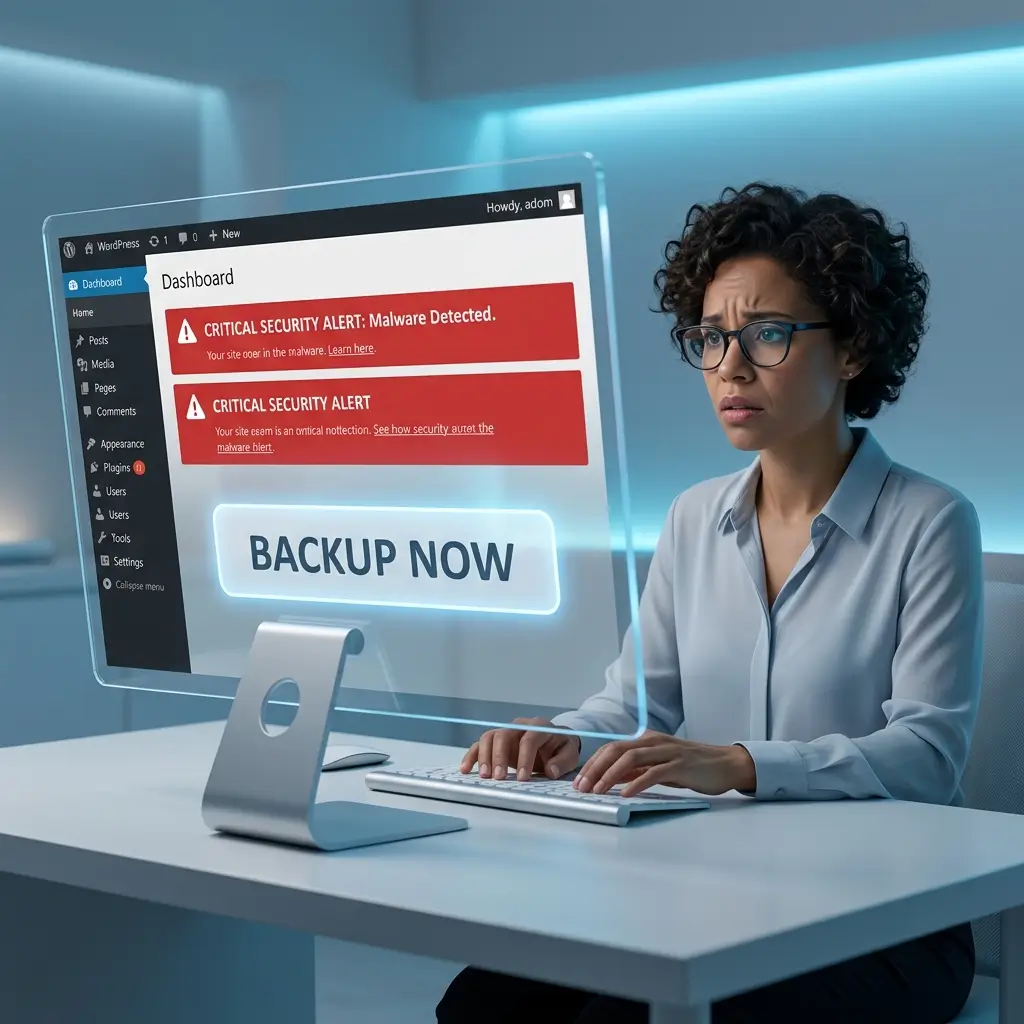

WordPress powers millions of websites worldwide, which also makes it one of the biggest targets for hackers and malware attacks.
A single infected plugin, weak password, nulled theme, or outdated installation can compromise your entire website within minutes.
Unfortunately, many website owners panic after getting hacked and accidentally damage their site further while trying to fix it.
The good news is that most WordPress malware infections can be removed safely without losing your website, content, SEO rankings, or database data — if handled correctly.
This guide explains:
- How WordPress malware infections happen
- Warning signs your site is hacked
- Step-by-step malware removal
- How to clean infected files safely
- How to secure your site afterward
- Best WordPress security tools in 2026
Whether your site is redirecting users, showing spam pages, injecting malicious code, or getting flagged by Google, this guide will help you recover your website safely.
What Is WordPress Malware?
WordPress malware is malicious code injected into your website by attackers.
Hackers use malware to:
- Redirect visitors
- Steal data
- Inject spam
- Create backdoors
- Send phishing emails
- Hijack SEO traffic
- Use your server for attacks
Some infections remain hidden for months before site owners notice anything.
Common Signs Your WordPress Site Is Infected
WordPress malware infections often show clear warning signs.
Common symptoms include:
- Strange redirects
- Spam popups
- Google Safe Browsing warnings
- Unknown admin users
- Slow website performance
- Suspicious files
- Hosting suspension notices
- Unexpected SEO pages
- Antivirus warnings
- Modified core files
Sometimes infections remain invisible until search engines detect them.
How WordPress Sites Get Hacked
Most WordPress hacks happen because of security weaknesses.
1. Outdated Plugins & Themes
Old plugins frequently contain known vulnerabilities.
Hackers scan the internet looking for outdated WordPress components.
2. Nulled Themes & Plugins
Pirated themes and plugins are one of the biggest malware sources.
Many contain:
- Hidden backdoors
- Spam injectors
- Remote access code
Avoid nulled software completely.
3. Weak Passwords
Weak admin passwords make brute-force attacks easier.
Examples of dangerous passwords:
- admin123
- password
- website name variations
4. Poor Hosting Security
Cheap or poorly managed hosting environments increase risk.
Shared hosting infections can sometimes spread between websites.
5. File Permission Misconfigurations
Incorrect file permissions can expose sensitive files to attackers.
Before Removing Malware: Backup Your Website First
Before changing anything, create a full backup of:
- Website files
- Database
- wp-content folder
- Configuration files
This is critical.
Even infected backups are valuable because they allow rollback if something breaks during cleanup.
Step 1: Put Your Website Into Maintenance Mode
Temporarily limiting access helps:
- Prevent further damage
- Stop malware spread
- Protect visitors
You can:
- Enable maintenance mode
- Password-protect the site
- Restrict admin access temporarily
Step 2: Scan Your WordPress Site for Malware
Start by identifying infected files.
Some of the best malware scanning tools include:
Wordfence
Best For
- Malware scanning
- Firewall protection
- Login security
Why It’s Popular
Wordfence offers:
- File change detection
- Malware scanning
- Firewall protection
- Login attack prevention
It remains one of the most widely used WordPress security plugins.
Sucuri
Best For
- External malware monitoring
- Website cleanup
- Firewall protection
Why Site Owners Use It
Sucuri specializes in:
- Malware cleanup
- Blacklist monitoring
- CDN firewall security
It is especially useful for heavily infected sites.
MalCare
Best For
- One-click malware cleanup
- Automated scanning
Why Beginners Like It
MalCare focuses on easy malware removal workflows for non-technical users.
Step 3: Identify Suspicious Files
Hackers commonly inject malware into:
- wp-config.php
- functions.php
- .htaccess
- wp-content/uploads
- plugin files
- theme files
Suspicious code often contains:
- base64 encoding
- eval()
- gzinflate()
- hidden redirects
- obfuscated scripts
Example of suspicious patterns:
eval(base64_decode('malicious code'));
However, not every encoded function is automatically malicious, so be careful before deleting files.
Step 4: Remove Unknown Admin Users
Hackers frequently create hidden administrator accounts.
Check:
- Users → Administrators
- Database user tables
- Security plugin user logs
Delete any suspicious accounts immediately.
Step 5: Replace Core WordPress Files
One of the safest cleanup methods is replacing WordPress core files with fresh copies.
Do NOT overwrite:
- wp-content
- wp-config.php
Instead:
- Download fresh WordPress files
- Replace:
- wp-admin
- wp-includes
- Replace root files carefully
This removes many common infections.
Step 6: Reinstall Plugins & Themes
Delete all unused plugins and themes.
Then:
- Download clean versions from trusted sources
- Reinstall manually
Avoid restoring old infected plugin backups.
Step 7: Scan the Database
Some malware hides inside:
- wp_posts
- wp_options
- injected JavaScript
- spam SEO pages
Look for:
- Hidden iframes
- Spam links
- Encoded scripts
- Suspicious redirects
Database infections are common in SEO spam attacks.
Step 8: Change All Passwords
After cleanup, reset:
- WordPress admin passwords
- Hosting passwords
- Database passwords
- FTP/SFTP credentials
- Email passwords
Use strong password managers whenever possible.
Step 9: Remove Backdoors
Backdoors allow hackers to regain access even after cleanup.
Common backdoor locations:
- uploads folder
- fake plugin files
- hidden PHP files
- renamed admin files
Backdoors often use random filenames to avoid detection.
Step 10: Clear Caches & CDN Files
Cached infected files may continue serving malware.
Clear:
- WordPress cache plugins
- CDN cache
- Browser cache
- Server cache
Step 11: Request Google Review (If Blacklisted)
If Google flagged your site:
- Clean the infection fully
- Verify ownership in Google Search Console
- Request a security review
Google may remove warnings after verification.
Best WordPress Security Plugins in 2026
Wordfence
Best all-around WordPress security plugin.
Sucuri
Best premium malware cleanup service.
SolidWP
Strong login and hardening features.
MalCare
Excellent automated malware cleanup.
How to Prevent WordPress Malware in the Future
Prevention is easier than recovery.
1. Use Trusted Plugins Only
Install plugins only from:
- Official WordPress repository
- Trusted developers
Avoid abandoned plugins.
2. Keep Everything Updated
Always update:
- WordPress core
- Plugins
- Themes
Security updates patch vulnerabilities quickly.
3. Enable Two-Factor Authentication
2FA dramatically reduces account compromise risk.
4. Use Strong Passwords
Every admin account should use:
- Unique passwords
- Long password combinations
- Password managers
5. Disable Unused Plugins & Themes
Inactive plugins still create attack surfaces.
Delete unused components entirely.
6. Use Web Application Firewalls
Firewalls help block:
- Brute-force attacks
- Malicious bots
- Exploit attempts
7. Disable File Editing in WordPress
Add this to wp-config.php:
define('DISALLOW_FILE_EDIT', true);
This limits admin-level code editing risks.
8. Use Secure Hosting
Good hosting providers improve:
- Malware isolation
- Firewall protection
- Server hardening
- Backup systems
Cheap insecure hosting increases risk.
Common WordPress Malware Types
SEO Spam Malware
Injects fake SEO pages and spam keywords.
Redirect Malware
Redirects visitors to scam or spam websites.
Backdoor Malware
Creates hidden access for attackers.
Phishing Malware
Hosts fake login pages or scams.
Crypto Mining Malware
Uses server resources for cryptocurrency mining.
Why Manual Cleanup Is Often Better
Automatic cleanup tools help, but manual review is still important because:
- Some malware hides deeply
- False positives happen
- Automated tools may miss custom injections
Advanced infections often require manual investigation.
WordPress Malware Red Flags
Be cautious if you notice:
- Sudden traffic drops
- Unknown files
- Strange cron jobs
- Spam search results
- Hosting warnings
- Unusual admin activity
Early detection greatly reduces damage.
Free vs Paid Malware Removal
Free Tools
Good for:
- Basic scanning
- Smaller infections
- DIY cleanup
Paid Services
Better for:
- Large infections
- Blacklisted websites
- Ecommerce stores
- Business-critical sites
Professional cleanup services can save significant time.
Final Verdict
WordPress malware infections can feel overwhelming, but most sites can be recovered safely with the correct approach.
The most important steps are:
- Backing up your site
- Identifying infected files
- Removing malware carefully
- Securing the website afterward
For most users, Wordfence provides excellent all-around protection, while Sucuri remains one of the strongest premium cleanup solutions.
The best defense against WordPress malware is proactive security, regular updates, trusted plugins, and strong account protection practices.